How to Set Up & Monitor Security Cameras with ezyLiv App?
In today’s world, security is one of the top priorities for homeowners and business owners alike. Whether you're looking to monitor your home for safety, keep an eye on your office, or simply ensure everything is running smoothly, surveillance cameras provide an essential layer of protection. But managing these cameras efficiently and ensuring seamless monitoring can be challenging without the right tools.
This is where the ezyLiv App comes in. It allows you to easily set up and manage your security cameras, offering features such as real-time video streaming, remote control, motion detection alerts, two-way audio, and much more. Whether you're a first-time user or an experienced professional, this guide will walk you through everything you need to know about setting up and monitoring cameras using the ezyLiv App.
What is the ezyLiv App?
Before diving into the setup and monitoring process, it’s essential to understand the ezyLiv App’s capabilities.
The ezyLiv App is an intuitive mobile application designed to offer users a seamless experience when managing their surveillance devices. It supports both Android and iOS devices, making it accessible to a wide range of users. With ezyLiv, you can:
Stream live video from your security cameras in real-time.
Control PTZ (Pan, Tilt, Zoom) cameras remotely.
Set up motion detection alerts for increased security.
Communicate via two-way audio for enhanced interaction.
Manage device health (check if your cameras are online or offline).
Remote configuration for easy setup and monitoring.
The ezyLiv App is compatible with a wide range of devices and cameras, making it ideal for both home and business security.
How to Set Up & Connect Your Cameras with ezyLiv App?
Setting up your cameras with ezyLiv is straightforward. You can add cameras manually or use a QR code scanning feature for quicker setup. Follow these steps to get started:
Step 1: Download the ezyLiv App
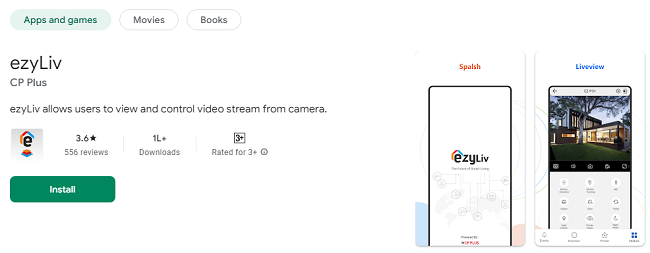
The first step in setting up your cameras is to download the ezyLiv App from the Google Play Store (for Android users) or the Apple App Store (for iOS users). Here’s how:
Open the App Store on your device (Google Play Store for Android or Apple App Store for iOS).
Search for “ezyLiv” in the search bar.
Tap on the Download or Install button.
Once installed, open the app on your device.
Step 2: Create an Account or Sign In
If you’re a new user, you’ll need to create an account to start using ezyLiv. Here’s how to set it up:
Open the ezyLiv App and tap on Sign Up.
Provide the required details such as your email address and a password to create your account.
Once your account is created, you can sign in using your credentials. If you already have an account, simply log in.
Step 3: Add Your Devices
To set up your cameras, you need to connect them to the ezyLiv app. This can be done using two methods:
Method 1: Using QR Code (Fastest Setup)
Many modern cameras come with a QR code that can be scanned for easy setup. Follow these steps:
In the ezyLiv app, go to the Device Management section.
Tap on Add Device or Scan QR Code.
Use your device’s camera to scan the QR code located on your security camera or its manual.
The app will automatically detect and add the camera to your account. You will be prompted to name your device (e.g., “Front Door Camera”).
Method 2: Manual Device Setup
If you don’t have a QR code or if your camera doesn’t support this feature, you can add the camera manually:
In the Device Management section, tap on Add Device.
Select the camera type from the list of supported devices.
Enter the camera’s IP address or device ID (this information can usually be found in the camera’s manual).
Follow the on-screen instructions to connect the camera to your Wi-Fi network (or wired connection, if applicable).
Once the camera is added, it should appear on your app’s Device List.
How to Monitor Cameras Using ezyLiv App?
Once your cameras are set up, you can begin monitoring them in real-time. The ezyLiv app offers several features to enhance your monitoring experience.
Step 1: View Live Video Feeds
Open the ezyLiv App and go to the Device List.
Tap on the camera you want to view. The app will stream the live feed from that camera directly to your device.
You can maximize the view for a full-screen experience, allowing you to see more details from the camera feed.
Additional Tips for Live Video Streaming:
HD Quality: The ezyLiv app supports HD video streaming, so you can see clear and crisp footage. If your network allows, ensure that your camera is set to the highest video quality for optimal viewing.
Multiple Camera Views: If you have multiple cameras set up, you can easily switch between live feeds by tapping on each device. Some versions of the app may allow you to view multiple cameras on one screen.
Step 2: Control PTZ (Pan, Tilt, Zoom)
If you have a PTZ camera, you can remotely control its movements using the ezyLiv app. Here’s how:
While viewing the live feed from a PTZ-enabled camera, tap on the PTZ Control button.
Use the on-screen buttons to move the camera left, right (pan), up, or down (tilt). If you need to zoom in or out, use the zoom slider.
Adjusting the camera’s angle and zoom helps you focus on areas of interest or follow any movement in the camera’s field of view.
Step 3: Enable Motion Detection Alerts
To increase your security, ezyLiv allows you to set up motion detection alerts. This feature sends you real-time notifications whenever motion is detected by your camera. Here’s how to enable it:
Open the ezyLiv app and tap on the camera you want to configure.
Go to Settings or Camera Settings.
Look for the Motion Detection option and enable it.
Customize the motion sensitivity and alert settings to suit your needs. You can adjust the detection zones or receive alerts when the camera detects movement in specific areas.
Once enabled, you’ll receive push notifications on your device whenever the camera detects movement.
Step 4: Two-Way Audio Communication
If your camera supports two-way audio, you can communicate with people near the camera. This feature is particularly useful for doorbell cameras or security cameras placed in areas where interaction is needed. To use this feature:
Open the live feed for your camera.
Tap on the Audio icon in the app.
Press and hold the microphone icon to speak through the camera.
You can listen to audio from the camera by enabling the speaker icon.
This feature can be helpful for interacting with visitors, delivery personnel, or simply speaking to family members.
How to Customize Camera Settings and Notifications?
The ezyLiv app also allows you to customize camera settings and notifications to ensure that your security system works according to your needs.
1. Adjust Video Quality
To ensure the best video feed quality, adjust the resolution settings:
Open the Settings menu in the ezyLiv app.
Select the camera you want to adjust.
Look for the Video Settings section, where you can set the resolution (usually from SD to HD).
2. Set Up Email and Push Notifications
You can customize how and when you receive alerts. To set up notifications:
Go to the Settings section and tap on Notification Settings.
Choose whether you want to receive push notifications or email alerts.
Adjust notification preferences for motion detection, device disconnection, and other events.
3. Remote Configuration
The ezyLiv app allows you to remotely configure camera settings. This feature eliminates the need for direct interaction with the camera hardware, saving time and effort:
In the Device Settings menu, tap on the Remote Configuration option.
Adjust settings such as video quality, motion detection sensitivity, or PTZ controls directly through the app.
Why Choose ezyLiv for Camera Monitoring?
ezyLiv offers numerous advantages when it comes to camera monitoring and setup, making it an ideal choice for home security and business monitoring:
Easy Setup: With options like QR code scanning and manual entry, setting up cameras with ezyLiv is quick and hassle-free.
Real-Time Monitoring: Watch live video streams with HD quality and adjust your camera’s position remotely with PTZ controls.
Customization: Set up motion detection, adjust video quality, and manage notifications according to your preferences.
Two-Way Communication: Engage with people near the camera, whether it’s for security purposes or simply communicating with family or visitors.
Remote Configuration: Make camera adjustments remotely, saving time and reducing the need for physical interaction with the camera
Comprehensive Device Management: The ezyLiv app provides an easy-to-navigate interface for managing multiple cameras simultaneously. This is especially useful for businesses or larger homes where multiple surveillance devices are required.
Health Monitoring: The app allows users to monitor the health of their devices. You can quickly check whether your cameras are online or offline, ensuring that your security system is always up and running smoothly.
Cloud Storage and Video Playback: ezyLiv offers cloud storage options, allowing you to save and access video footage from any location. This is ideal for users who need to review footage after an incident or to track specific events over time.
Common Troubleshooting Tips for ezyLiv App Users
Even with a well-designed app, you may run into a few issues while using ezyLiv. Here are some common troubleshooting tips to ensure that you can get the most out of the app:
1. Camera Not Showing Live Feed
Check the Internet Connection: Make sure your camera and device are connected to the internet. A weak or unstable Wi-Fi signal can interfere with the live feed.
Restart the Camera: Power cycle the camera by turning it off for a few seconds and then turning it back on.
Check Camera Settings: Go into the settings and make sure that the camera’s streaming options are correctly configured. Ensure that the camera's resolution and bandwidth settings are compatible with your internet speed.
2. Motion Detection Alerts Not Working
Check the Motion Detection Sensitivity: Ensure that the sensitivity is set to an appropriate level. If the detection zone is too small or too sensitive, you may not receive notifications.
Notification Settings: Ensure that push notifications or email alerts are enabled in the app’s notification settings.
Test Motion Detection: Walk in front of the camera to see if it triggers an alert. If the camera does not detect motion, adjust the detection zone or sensitivity settings.
3. Audio Issues (Two-Way Communication)
Check Microphone and Speaker Settings: Make sure that both the microphone and speaker settings are enabled in the app. If there’s no sound, check if your phone’s volume is turned up.
Permissions: Verify that the app has the necessary permissions to access your phone’s microphone and speaker.
Network Bandwidth: Audio quality can be impacted by your internet speed. If you’re experiencing choppy audio, check your network connection.
4. Camera Not Adding or Connecting
Verify Camera Compatibility: Ensure that your camera is compatible with the ezyLiv app. Refer to the ezyLiv documentation or camera manual to verify compatibility.
Wi-Fi Settings: Double-check your Wi-Fi network. Some cameras only work with 2.4 GHz Wi-Fi bands, not 5 GHz. Make sure the camera is within range of your Wi-Fi router.
QR Code Scan: If you're using a QR code to add the device, make sure you’re scanning the correct code and that the camera is powered on.
5. ezyLiv App Crashing or Freezing
Update the App: Ensure that you're using the latest version of the ezyLiv app. Developers regularly release updates to fix bugs and improve performance.
Clear Cache and Data: Sometimes, app data can become corrupted, causing the app to freeze or crash. Try clearing the cache or reinstalling the app.
Device Compatibility: Ensure that your device meets the minimum system requirements for the ezyLiv app. If you're using an older phone or tablet, performance issues may arise.
Security Tips for Maximizing the Use of Your ezyLiv App
To get the most out of your ezyLiv app and ensure your cameras remain effective at providing security, consider these security best practices:
1. Use Strong Passwords
Always use strong, unique passwords for your camera accounts and the ezyLiv app. Avoid default passwords or simple combinations like "123456" or "password." This will make it more difficult for hackers to gain unauthorized access.
2. Enable Two-Factor Authentication (2FA)
If ezyLiv offers two-factor authentication (2FA), enable it to add an extra layer of security to your account. This ensures that even if someone has access to your password, they cannot log in without the second form of verification.
3. Regularly Update Your Firmware and Software
Make sure to update both your camera’s firmware and the ezyLiv app whenever a new update is available. Updates often include security patches, bug fixes, and new features that can enhance the performance of your system.
4. Secure Your Wi-Fi Network
Ensure that your Wi-Fi network is encrypted with WPA3 or WPA2 security protocols. This will prevent unauthorized devices from connecting to your network and potentially compromising your camera feeds.
5. Limit Access to Your Camera Feeds
Avoid giving access to your camera system to too many people. Only share login credentials with trusted individuals. If the ezyLiv app allows, set up multiple user profiles with different levels of access to ensure that each user has the appropriate permissions.
Conclusion
The ezyLiv App is a powerful tool for managing and monitoring your security cameras. With its user-friendly interface and robust features, it allows homeowners and business owners to set up, monitor, and control their cameras remotely. Whether you’re looking to secure your home, business, or both, the ezyLiv app offers everything you need to stay connected, informed, and in control of your security system.
From live video streaming to PTZ camera controls, motion detection alerts, two-way audio, and remote configuration, ezyLiv provides a comprehensive solution for modern surveillance needs. And with cloud storage and video playback features, you can rest assured that your footage is safe and accessible at all times.
By following the setup and monitoring steps outlined in this guide, you'll be able to fully leverage the capabilities of your ezyLiv-powered security system, ensuring that your property is always protected.
Trending Now
Updates